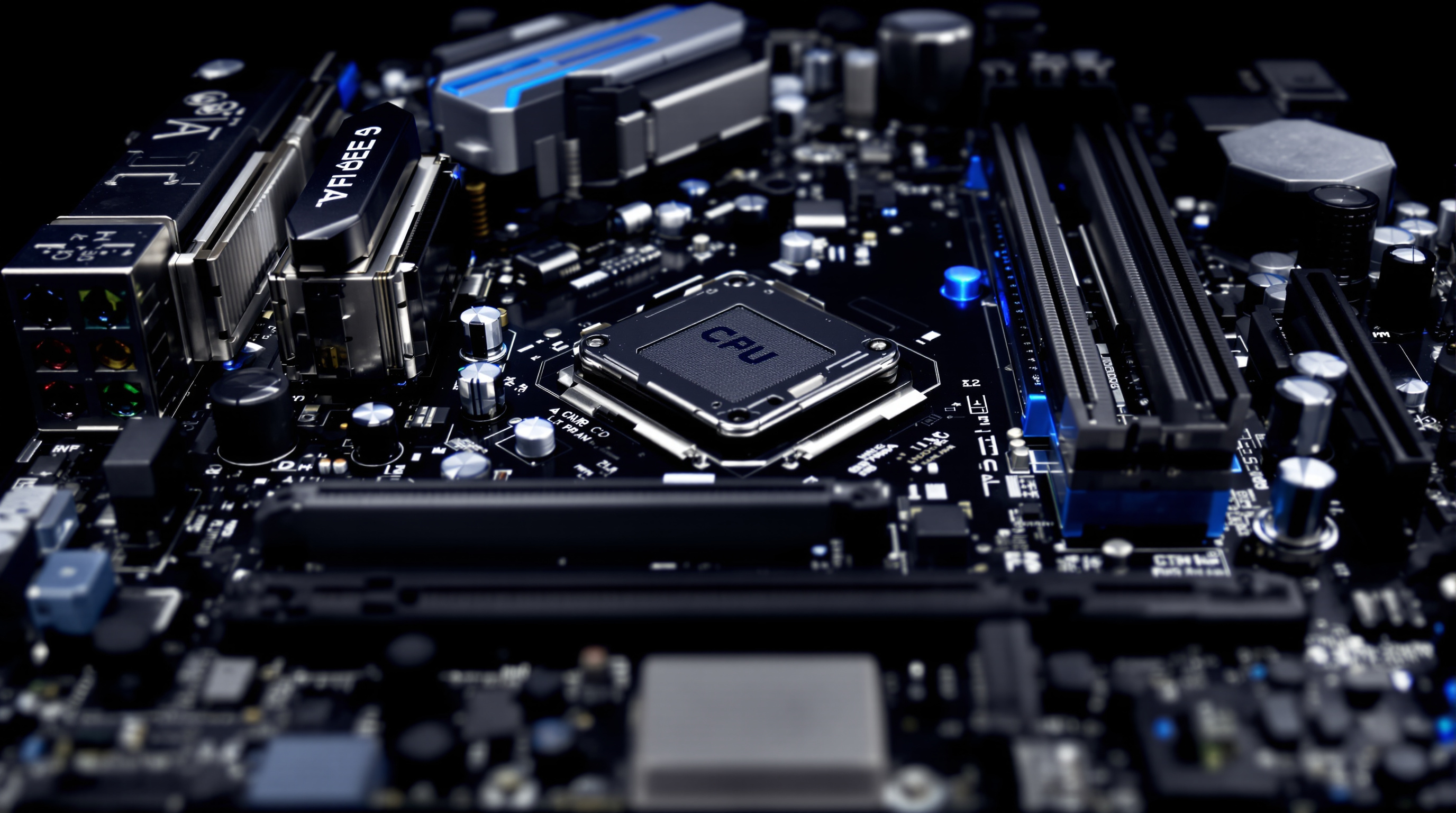
Most people buy computers the way they buy appliances — they look at the price tag, maybe glance at a spec sheet they don't fully understand, and hope for the best. That works until it doesn't: until you buy more machine than you need, or less than you needed, or until something stops working and you have no idea where to begin troubleshooting. Hardware knowledge costs nothing and saves both money and frustration.
This section covers the physical components that make up personal computers — what each part does, how to evaluate specifications, when upgrading beats buying new, and how to make sense of the marketing language that manufacturers use to obscure rather than inform.
Articles in This Section
-
What's Inside Your PC
A plain-language tour of every major component: CPU, RAM, motherboard, GPU, storage, and power supply — what each one does and why it matters to your purchase decision.
-
The History of the Desktop Computer
From the Altair 8800 to the modern gaming tower, how desktop computing evolved across five decades of innovation, market competition, and shrinking price-per-performance.
-
Home PC Varieties: Towers, All-in-Ones, and Mini PCs
The differences between desktop form factors — expandability, cooling, footprint, and which one fits your actual situation.
-
Understanding Your Motherboard
The motherboard is the backbone every other component plugs into. Understanding chipsets, socket compatibility, and expansion slots demystifies computer buying and upgrading.
-
The Mac Mystique: Why Apple Commands a Premium
An honest look at why Macs cost more than comparable Windows PCs, what you actually get for the premium, and who should — and shouldn't — pay it.
The Three Things Hardware Knowledge Buys You
Buy Only What You Need
Retailers and manufacturers profit when you buy more than you need. A family that uses a computer for email, video streaming, and light word processing has no practical need for a 12-core processor or a dedicated graphics card — but those features will appear prominently in marketing because they carry higher margins. Understanding what each component actually does allows you to filter out the irrelevant and focus on what matters for your specific workload.
At the same time, false economy in the other direction is real. Buying the cheapest available RAM or a marginally-specced processor to hit a price point often means the machine feels slow from day one and struggles with everyday tasks within two or three years. The goal is appropriate hardware for the actual use — not the cheapest and not the most expensive.
Upgrade Strategically
Most PCs can be extended with relatively low-cost upgrades that restore or improve performance without replacing the entire machine. Adding RAM is often the single cheapest performance gain available — many budget machines ship with 8GB when 16GB would make a noticeable difference for about $30 to $50 in parts. Replacing a spinning hard drive with an SSD is similarly transformative; boot times and application launch speeds improve dramatically at a cost that has fallen substantially over the past decade.
Knowing your motherboard's socket type and maximum supported RAM tells you what upgrades are available to you. Knowing your power supply's wattage headroom tells you whether a GPU upgrade is feasible without replacing the PSU as well. Without that foundational knowledge, you're guessing — and often spending more than necessary or making upgrades that don't address the actual bottleneck.
Troubleshoot Effectively
Hardware failures are almost always component-specific. A computer that won't boot might have a failed hard drive, a bad RAM stick, a corrupted power supply, or a dead CMOS battery — but diagnosing which requires understanding what each part does and how they interact. Understanding component roles lets you systematically isolate problems rather than assuming the entire machine is dead and buying a replacement unnecessarily. Most local computer shops charge significant labor rates for diagnostics that a knowledgeable owner could perform in 20 minutes.
How to Read Hardware Specs
CPU: Cores and Clock Speed
A CPU's specification will list a core count and a clock speed in gigahertz (GHz). More cores help with tasks that can be parallelized — video encoding, 3D rendering, running multiple virtual machines simultaneously. A higher clock speed benefits tasks that run on a single thread, which includes many games and older applications. For general use, 6–8 cores at 3.5–5GHz covers essentially any home workload comfortably. Don't be misled by raw GHz comparisons across different processor generations or manufacturers — architecture matters, and a modern 3.5GHz chip often outperforms a four-year-old 4.2GHz chip.
RAM: Gigabytes and Speed
RAM is measured in gigabytes (GB) — how much data can be held in fast, immediately accessible memory at once — and in MHz — how quickly that data can be read and written. For general use, 16GB is a comfortable minimum in 2026, with 32GB recommended if you regularly run many browser tabs alongside creative or productivity software. RAM speed (DDR4 vs DDR5, 3200 vs 4800MHz) matters meaningfully for systems where the processor shares memory bandwidth with integrated graphics; for systems with a dedicated GPU, the difference is usually modest in real-world use.
Storage: Type and Capacity
Storage type — SSD (solid-state drive) versus HDD (hard disk drive) — matters more than capacity for everyday performance. An SSD with 500GB will feel dramatically faster than an HDD with 2TB for any storage that's actively accessed. SSDs have no moving parts, are more durable, and consume less power. HDDs remain cost-effective for bulk cold storage — archiving large files you rarely open. NVMe SSDs (connected via the M.2 slot) are significantly faster than SATA SSDs for large sequential file operations; for everyday computing tasks the difference is less dramatic but still noticeable.
GPU: VRAM and Architecture
The GPU (graphics processing unit) handles visual rendering. For general computing — web browsing, office software, video playback — the integrated graphics built into most modern CPUs is entirely sufficient. For gaming, 3D work, or video editing, a dedicated GPU makes a large difference. VRAM (video RAM, measured in GB) determines how much texture and frame data the GPU can hold; modern games at high settings benefit from 8GB or more. GPU architecture generation matters substantially — a newer mid-range card routinely outperforms an older flagship from several generations back at the same or lower price.
Read the Price Like a Spec
Component pricing carries information if you read it carefully. A processor or memory kit that sits far below the going rate is usually an older stepping, a lower bin, or a part being cleared before a platform transition — none of which is necessarily a problem, but all of which are facts you want before you buy rather than after. Conversely, a retailer's crossed-out “list price” is a marketing artefact in a category where almost nothing sells at list. Check the part number against the manufacturer's own specification page, compare the street price across two or three unrelated sellers, and treat any discount you cannot corroborate as advertising rather than information.
When to Upgrade vs. Buy New
The upgrade-vs-replace decision comes down to two factors: whether the bottleneck is addressable by upgrading a single component, and whether the rest of the machine is compatible with modern components and worth investing in.
Upgrades that almost always make sense: adding RAM to an under-specced machine (cheap, easy, high impact), replacing an HDD with an SSD (moderate cost, dramatic performance improvement), adding a dedicated GPU to a machine that has none (provided the PSU has sufficient headroom).
Signals that replacement makes more sense: the CPU socket is discontinued and a meaningful CPU upgrade requires a new motherboard anyway, the machine is more than seven or eight years old and the platform doesn't support current-generation components, or multiple components are failing or underperforming simultaneously.
For independent processor comparisons across generations, PassMark CPU Benchmark provides a searchable database of real-world benchmark scores. For thorough hardware reviews covering components from CPUs and GPUs to monitors and peripherals, Tom's Guide publishes detailed, methodology-driven assessments.
If you're interested in the software side of computing — particularly free and open-source alternatives to commercial software — see our Open Source Software section.